> For the complete documentation index, see [llms.txt](https://docs.argenie.ai/llms.txt). Markdown versions of documentation pages are available by appending `.md` to page URLs; this page is available as [Markdown](https://docs.argenie.ai/ar-genie-remote-assist/remote-assist-on-web-portal/schedule-a-session.md).
# Schedule a Session
Schedule a session in **AR Genie Remote Assist Portal** to plan meetings in advance, invite participants, and organize assistance workflows efficiently.
## Overview
The **Schedule Session** feature allows you to:
* Plan sessions ahead of time
* Invite internal agents and external guests
* Define session agenda and duration
* Enable optional features like live captions
## Access Schedule Session
To schedule a new session:
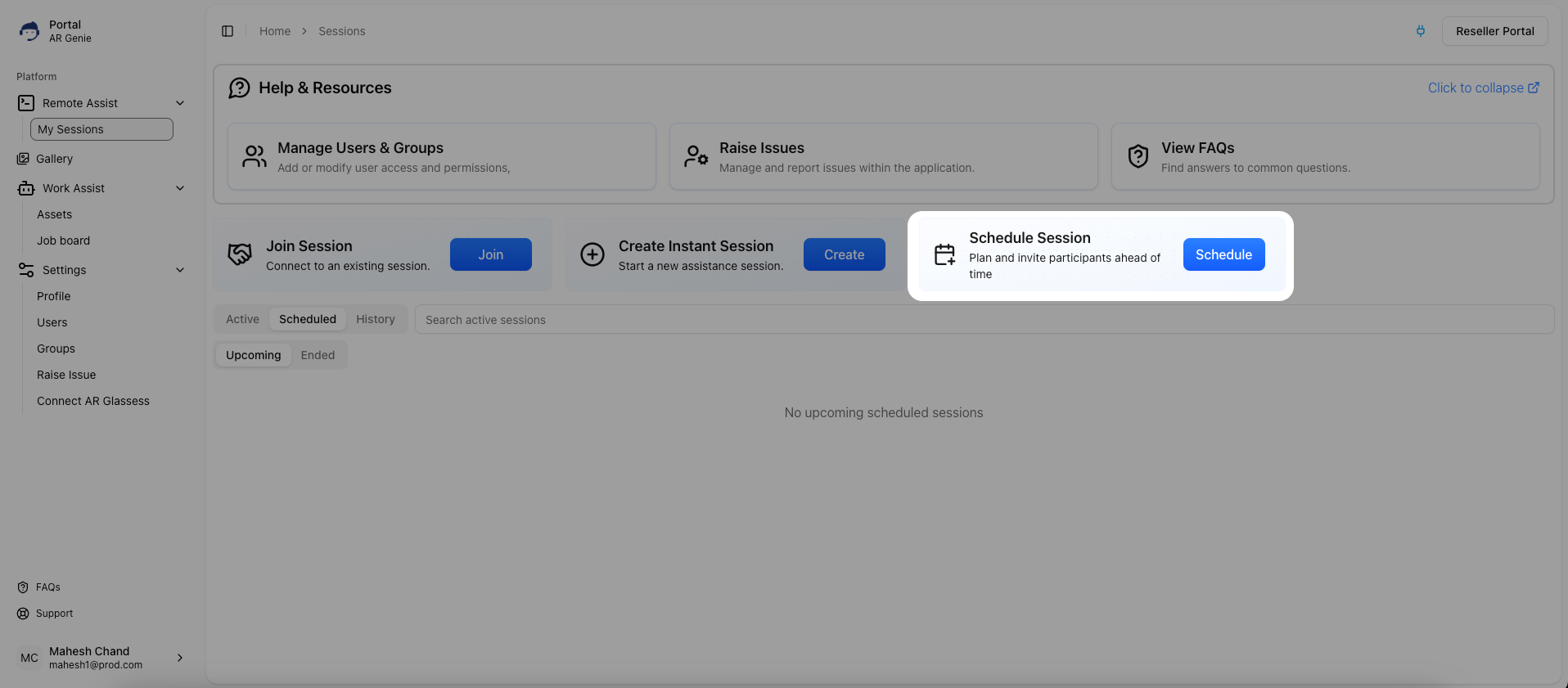
1. Navigate to **Remote Assist → My Sessions**
2. Click on **Schedule Session**
*The Schedule Session option is available under Help & Resources section.*
## Fill Session Details
After clicking **Schedule**, a form will appear where you need to enter session details.
### Required Fields
* **Date & Time**: Select session start date and time
* **Duration (minutes)**: Define how long the session will run
* **Agenda**: Brief description of the session purpose
*Enter date, time, duration, and agenda for the session.*
## Invite Participants
### Invite Internal Agents
* Use the **Search Agents** field
* Select users from the list
### Add Guest Invitees
* Click **Add Guest Email**
* Enter:
* Email address
* Name (optional)
* Add multiple guests if required
*Select agents and add guest invitees for the session.*
## Additional Options
* **Live Captions (Optional)**\
Enable real-time speech-to-text captions during the session
*Optional features like Live Captions can be enabled before scheduling.*
## Schedule the Session
* Click **Schedule Session** to finalize
* Click **Cancel** to discard
## View Scheduled Sessions
Once scheduled, sessions appear under the **Scheduled** tab.
### Tabs Available
* **Upcoming**: Future scheduled sessions
* **Ended**: Completed sessions
*View upcoming scheduled sessions with details and join option.*
*Access previously completed sessions under Ended tab.*
## Key Benefits
* Better planning and coordination
* Easy participant management
* Structured session execution
* Improved remote assistance efficiency