> For the complete documentation index, see [llms.txt](https://docs.argenie.ai/llms.txt). Markdown versions of documentation pages are available by appending `.md` to page URLs; this page is available as [Markdown](https://docs.argenie.ai/ar-genie-work-assist/work-assist-for-ipad/asset-hub-ipad.md).
# Asset Hub (iPad)
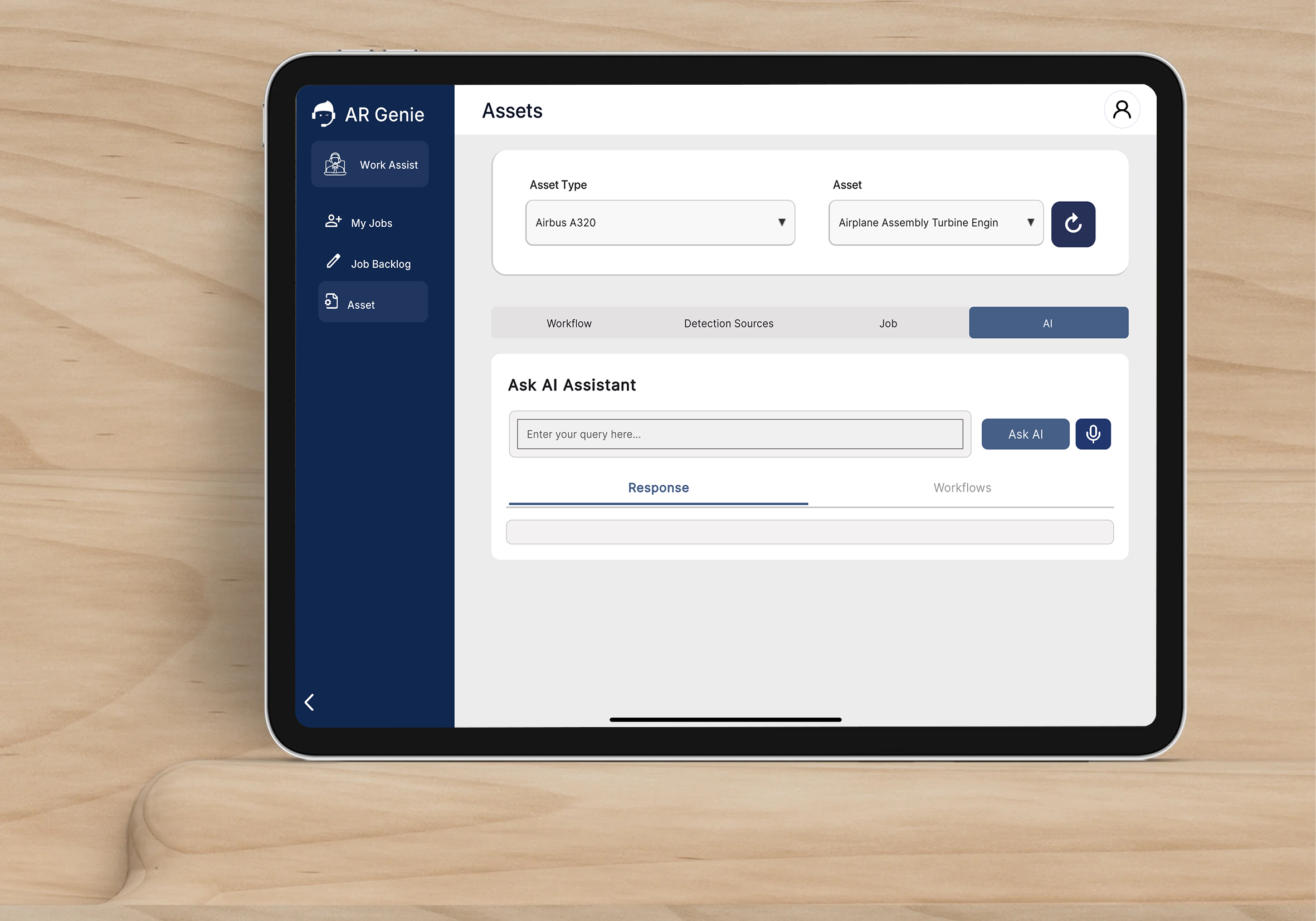
The **Asset Page** in the AR Genie Work Assist iPad app allows technicians to access all asset-type–specific information, including:
* AR Workflows
* Detection Sources
* Jobs
* AI Assistant
This page is **asset type–driven**, meaning:
✅ Only *Asset Type* needs to be selected\
❌ Selecting an individual Asset is optional
## Select Asset Type
{% stepper %}
{% step %}
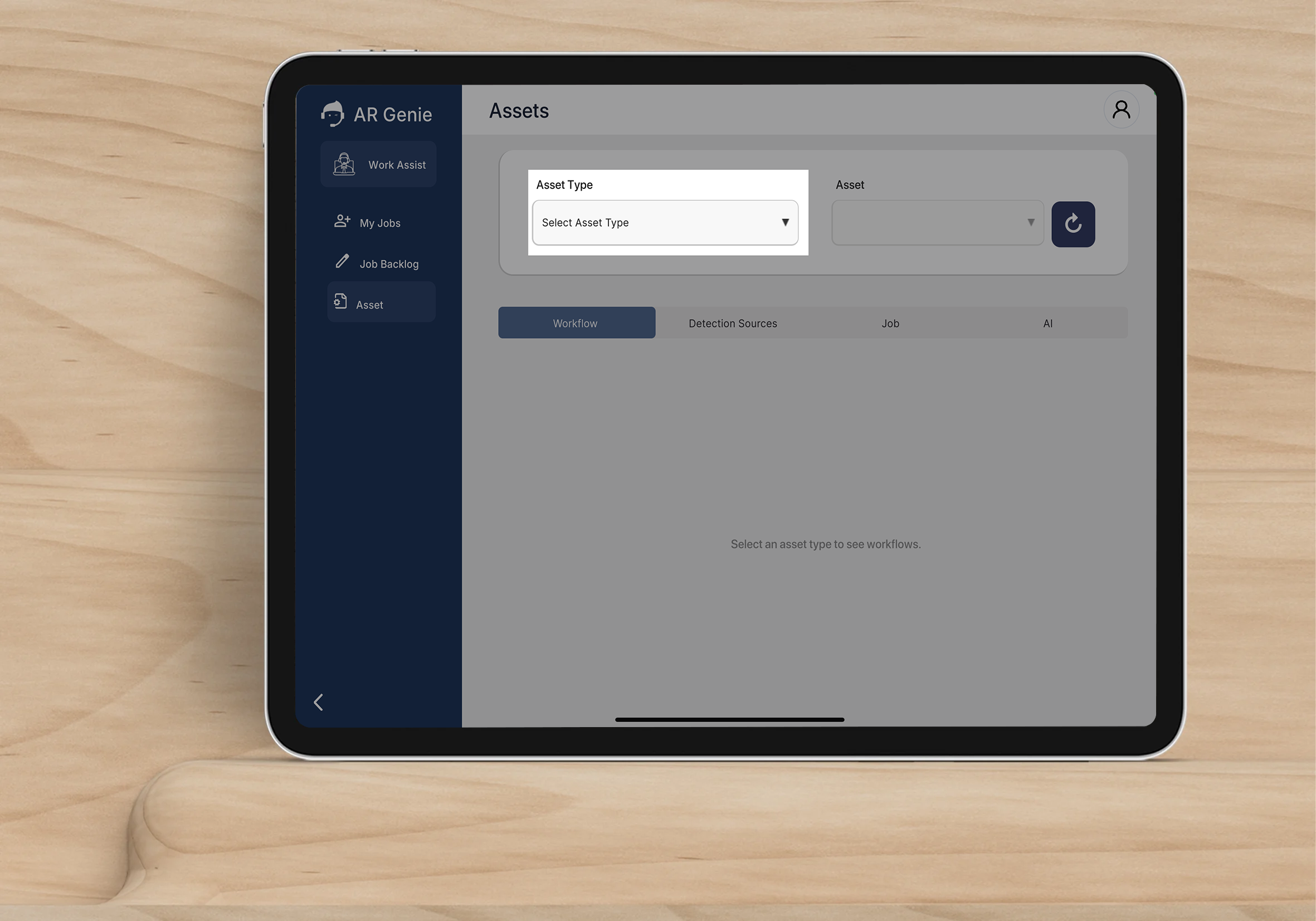
### Select Asset Type
* Tap **Asset Type**
* Choose the machine or equipment category
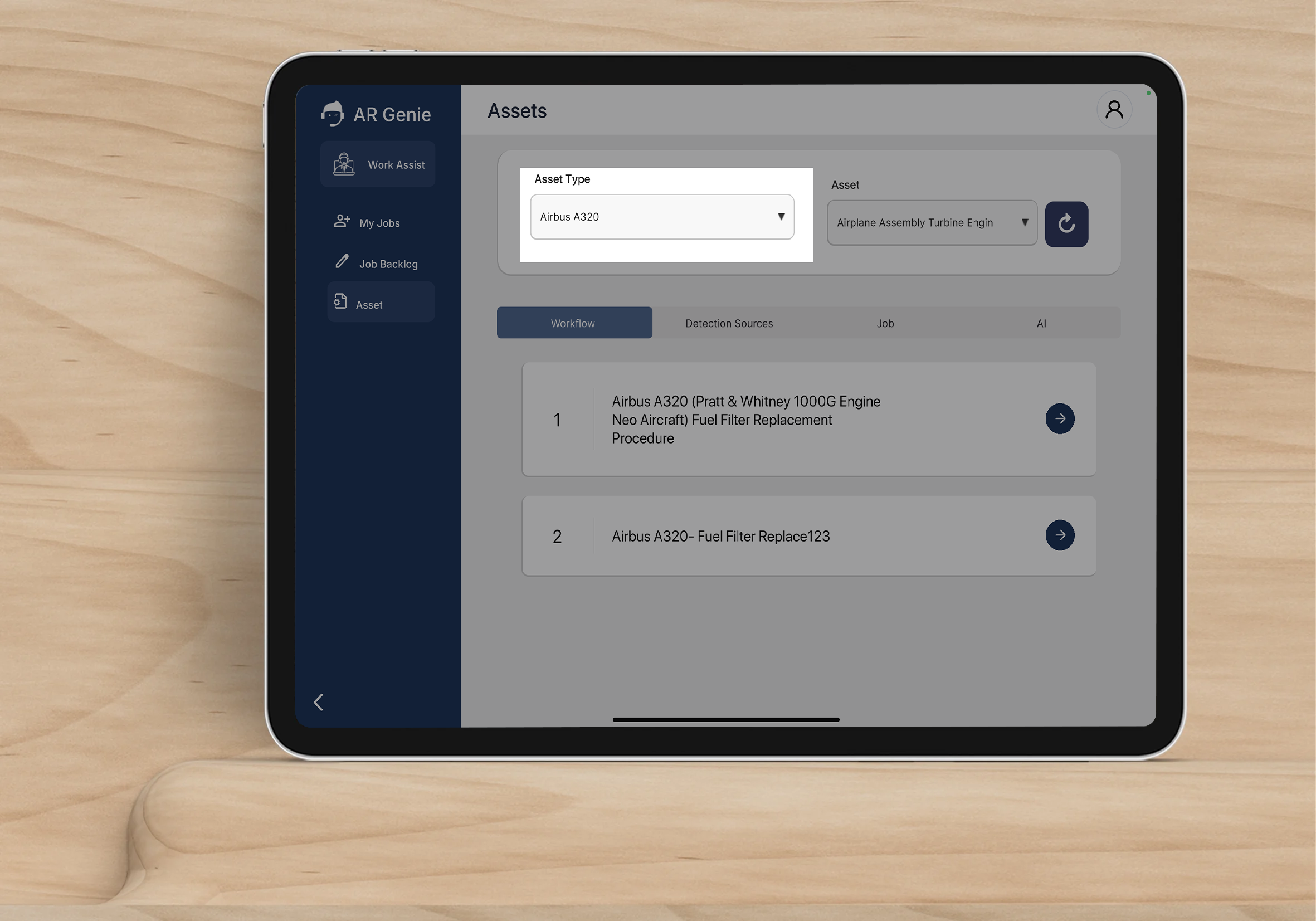
Example: *Airbus A320*
Once selected, all tabs update automatically based on the asset type.
{% endstep %}
{% endstepper %}
## Workflow Tab
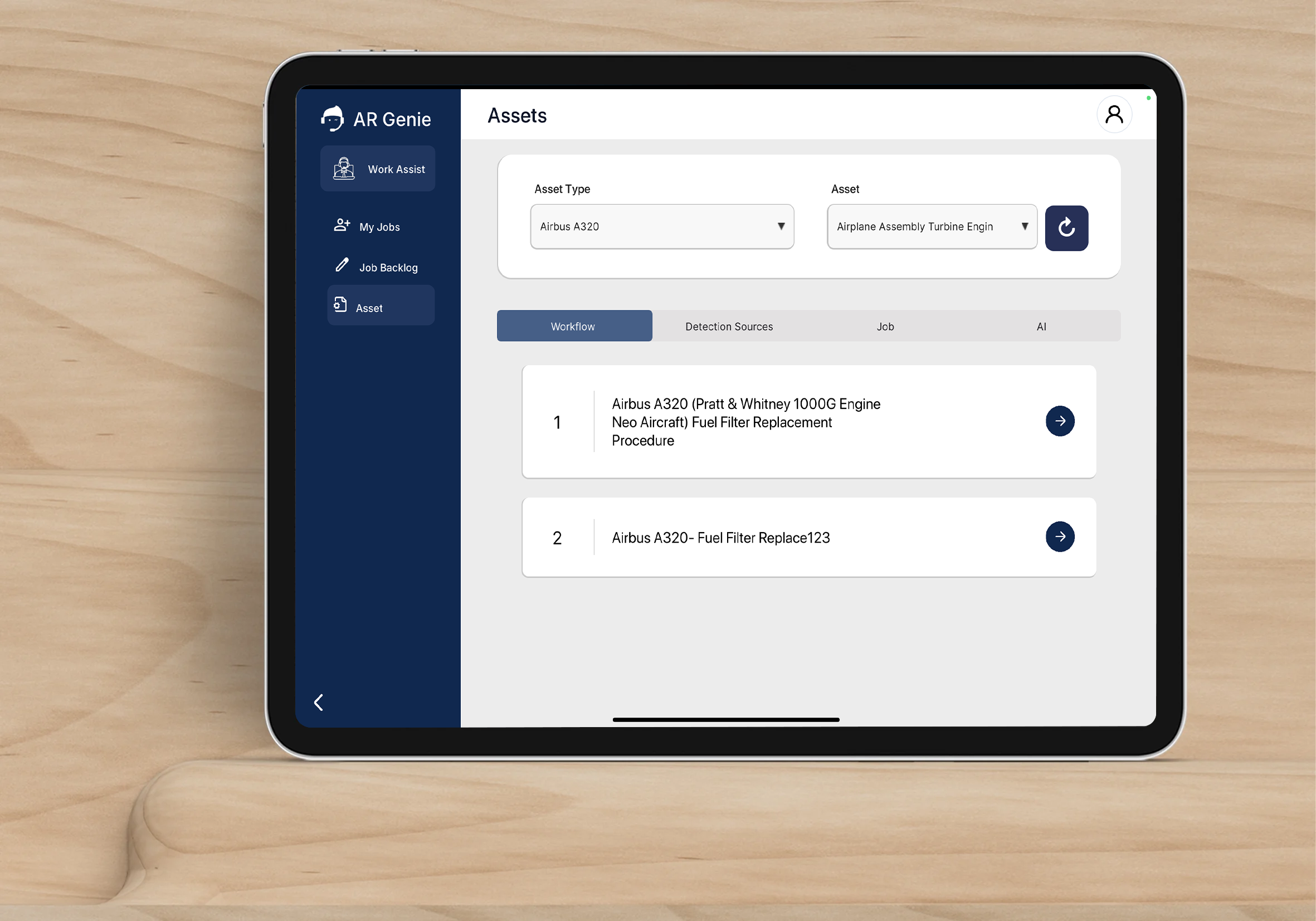
Displays available AR workflows for the selected asset type.
*Example: Airbus A320 Fuel Filter Replacement Procedure*
### You can:
✅ View workflows\
✅ Start a workflow\
✅ Follow step-by-step AR instructions
**Example:**
Selecting *Airbus A320* may show:
* Fuel Filter Replacement Procedure
* Engine Inspection Checklist
Tap ▶️ to begin.
## Detection Sources Tab
Contains visual markers used for AR recognition and anchoring.
*Example: Airbus A320 engine image target*
**Use Case Example**
Select detection source( e.g. image/3d object/QR code) to start anchor editor:
✅ System identifies location\
✅ Anchors instructions accurately
## Job Tab
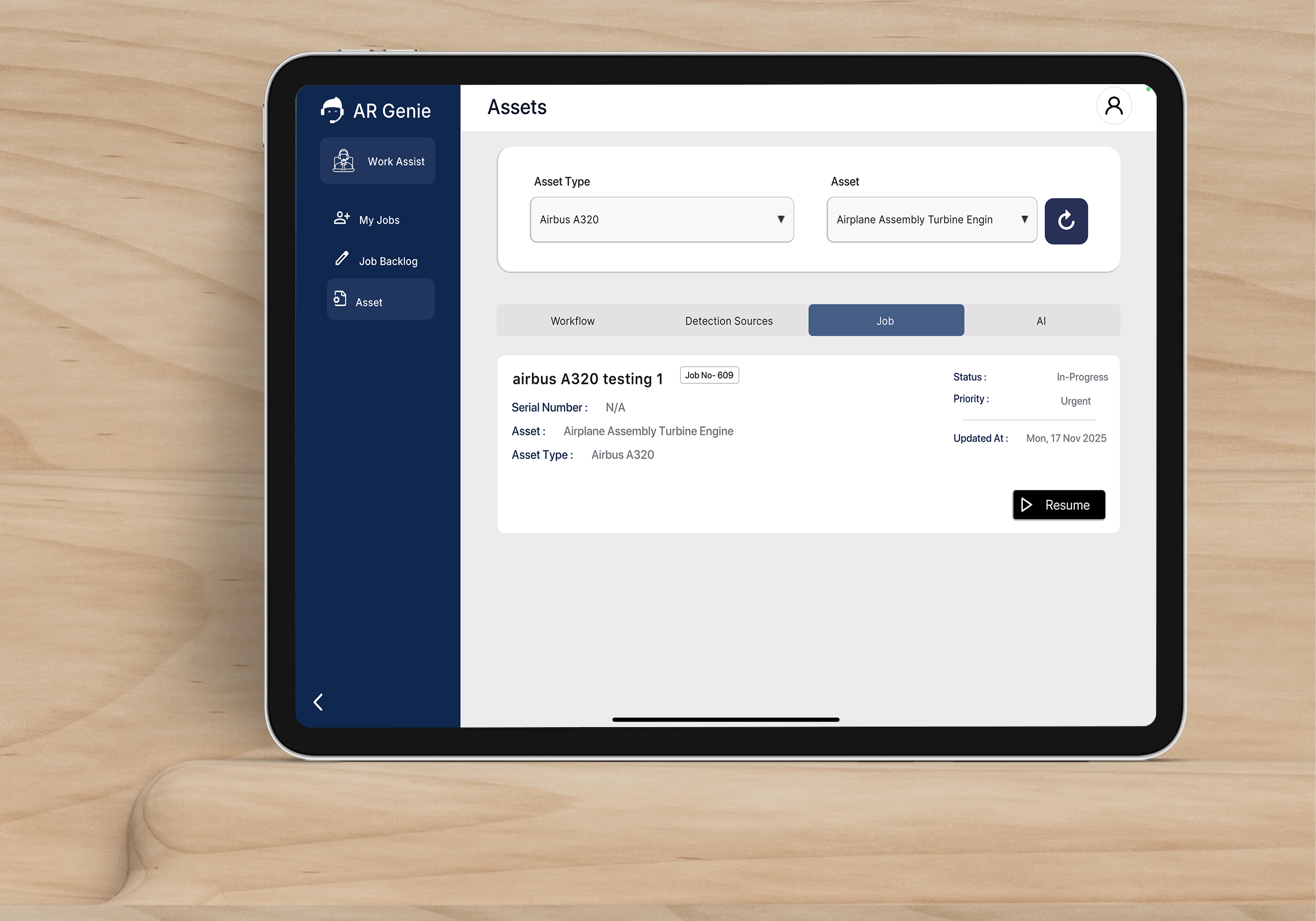
Shows job assignments for the selected asset type.
*Example: Job in progress for Airbus A320*
Jobs include:
* Job Name
* Status
* Priority
* Updated Date
Technicians can:
✅ Resume a job\
✅ Review history
## AI Tab
The AI Assistant helps with:
* Troubleshooting
* Procedure guidance
* Part information
* Safety steps
*Example: AI query field*
**Example Query:**
> "How do I remove the Airbus A320 fuel filter?"
AI provides:
✅ Steps\
✅ Tools needed\
✅ Safety notes
{% hint style="info" %}
Best Practice
* Always select the correct asset type before starting.
* Ensure detection source images are clear if printed onsite.
{% endhint %}