> For the complete documentation index, see [llms.txt](https://docs.argenie.ai/llms.txt). Markdown versions of documentation pages are available by appending `.md` to page URLs; this page is available as [Markdown](https://docs.argenie.ai/ar-genie-work-assist/work-assist-for-ipad/workflow-execution-ipad.md).
# Workflow Execution (iPad)
#### **Overview**
The **Workflow Execution** feature in the AR Genie Work Assist iPad app allows technicians to follow **step-by-step guided procedures** for maintenance, inspection, or assembly tasks.
Users can run workflows in two modes:
* ✅ **Non-AR Mode** – view text, images, videos, tools & tips in a standard interface
* ✅ **AR Mode** – overlay steps and media on real-world equipment using Augmented Reality
Once the workflow begins:
* You can switch between **AR** and **non-AR mode**
* If a step includes AR content:
* A **blue AR icon** appears above the mode switch control in the bottom right corner.
We recommend:
* ✅ Start in **non-AR mode**
* ✅ Understand the step instructions
* ✅ Switch to AR mode only when needed
This provides clearer orientation before using AR visual guidance.
***
## Selecting a Workflow (Non-AR Mode)
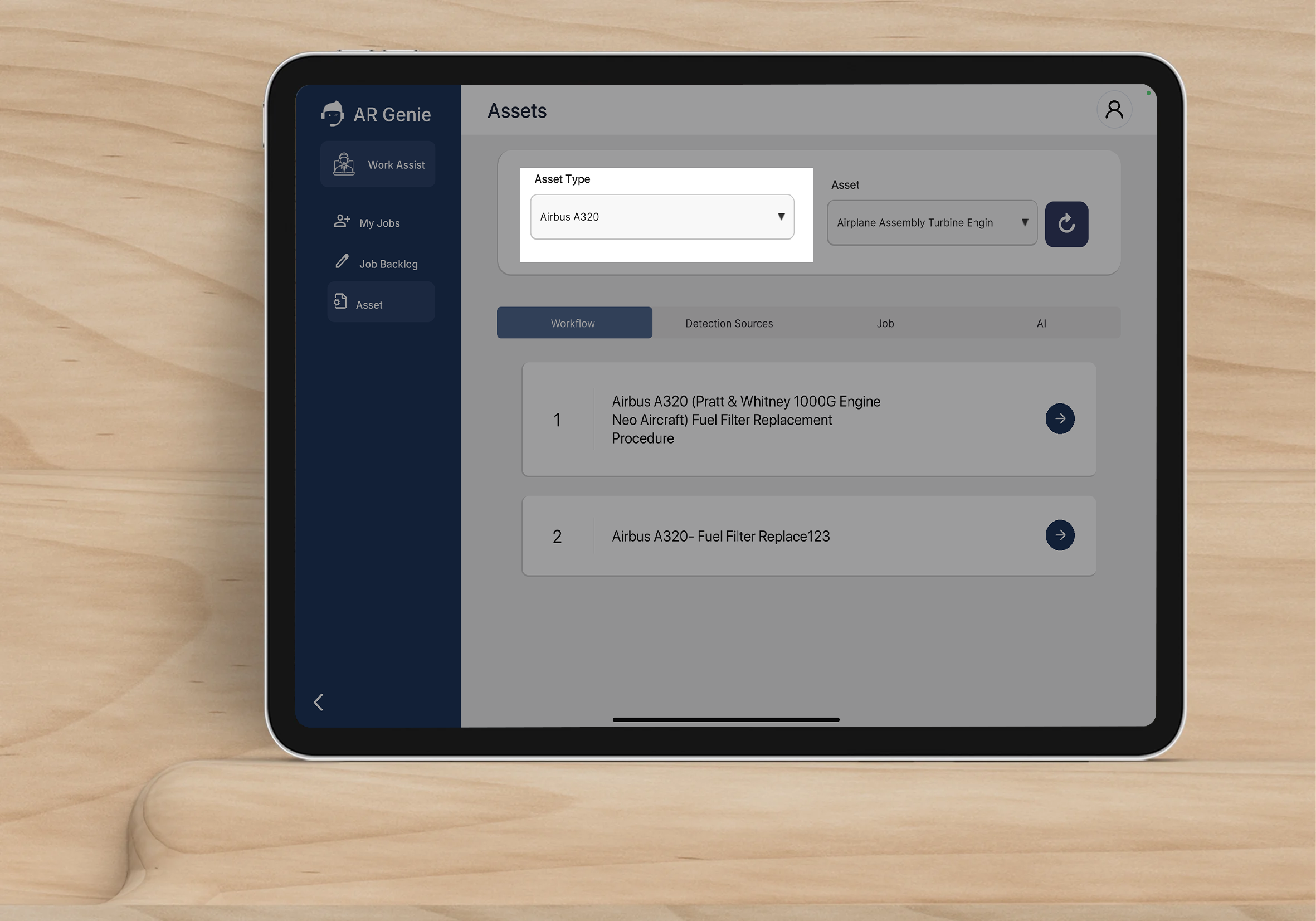
Once an **Asset Type** is selected, available workflows are listed with step indicators.
***
## Available Features in Non-AR Mode
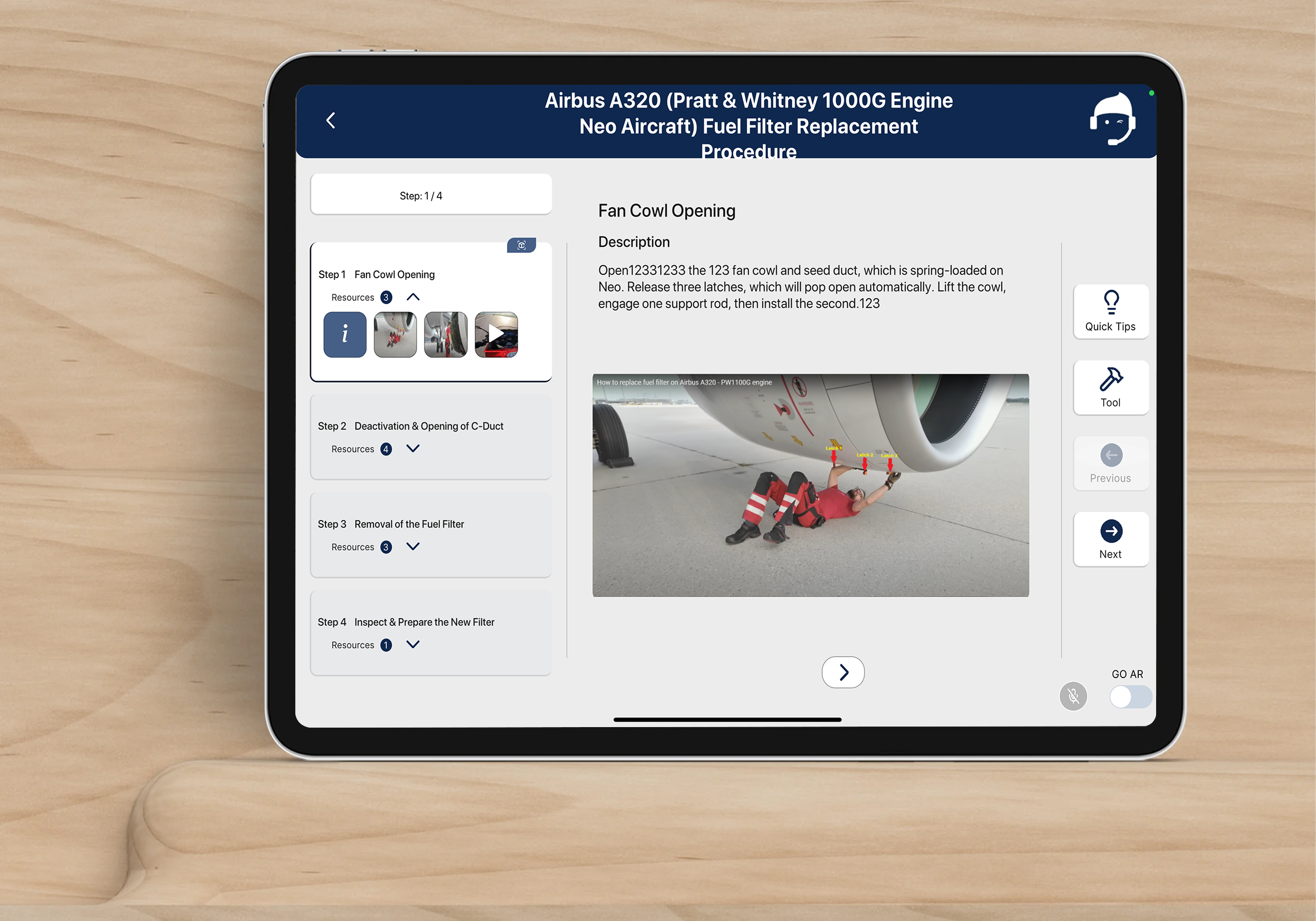
Each workflow step may include:
* ✅ Description text
* ✅ Images
* ✅ Videos
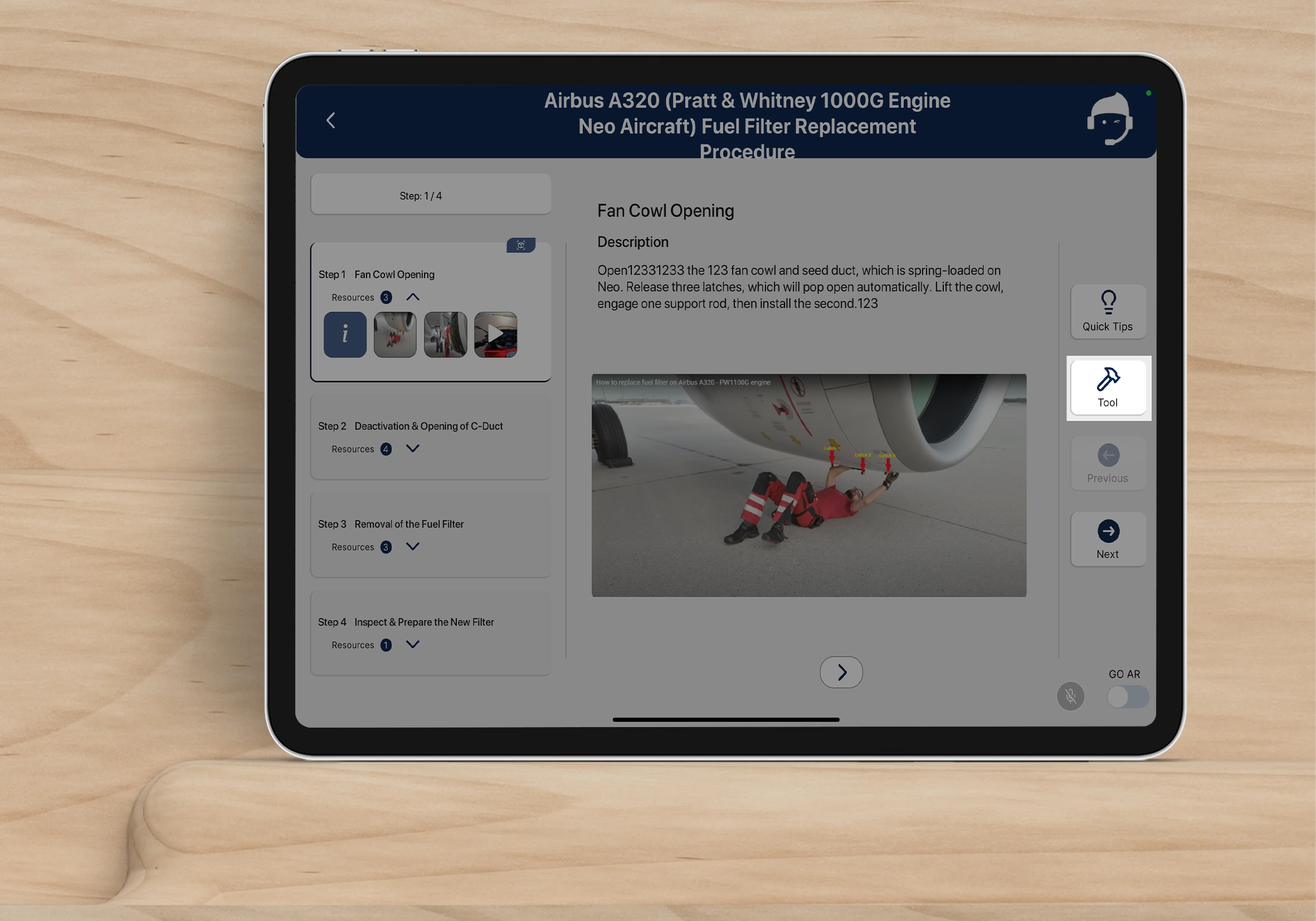
* ✅ Tools required
* ✅ Quick Tips
* ✅ Next/Previous navigation
* ✅ Resource count per step
***
## Tools & Resources
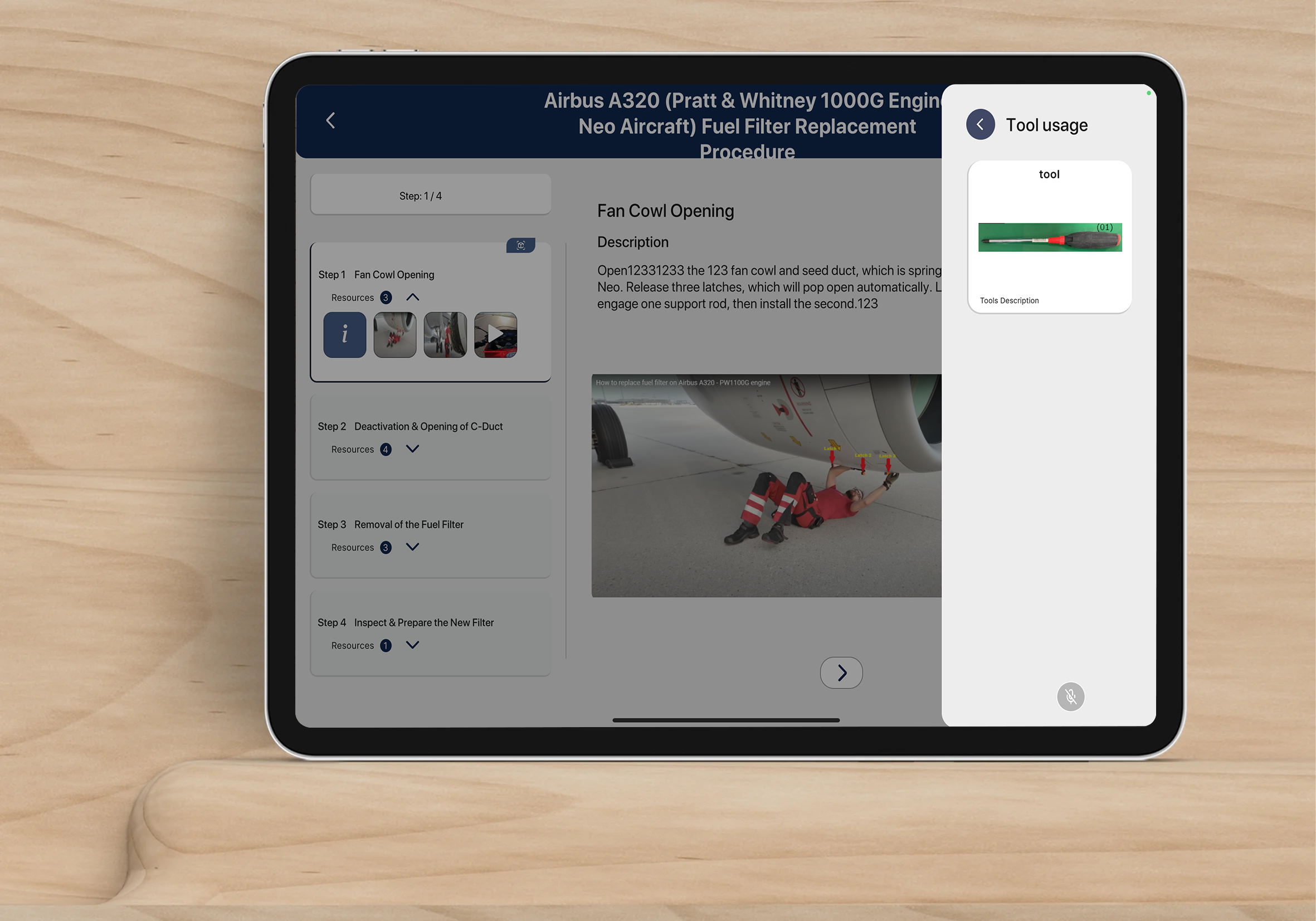
Users can open tool details at any time.
*Tool usage sidebar with image and description*
***
## Viewing Workflows in AR Mode
#### AR Mode Behavior
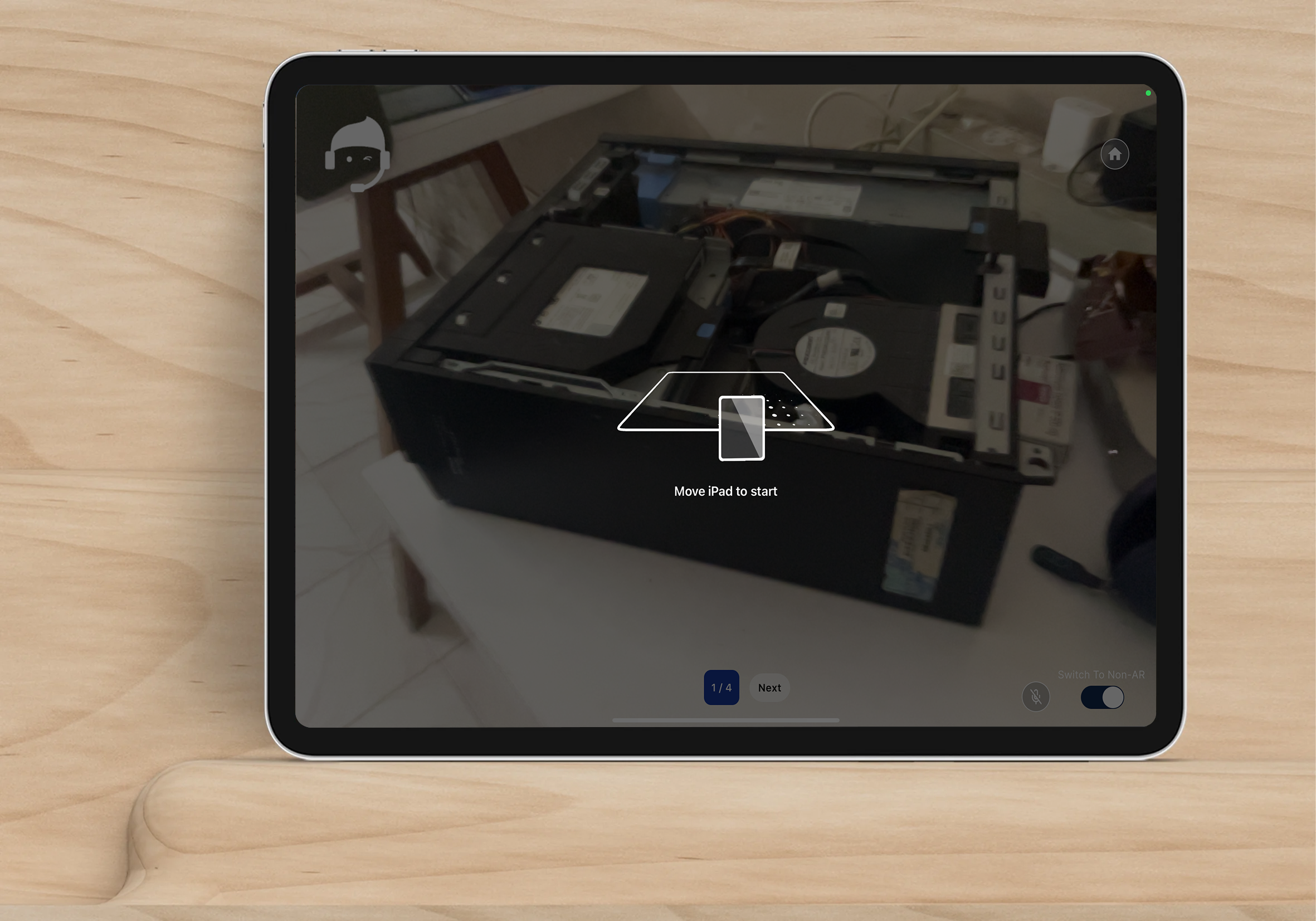
* If a step has **AR Anchors**, the app will attempt **object detection**
* You may need to move the iPad for alignment
* The app may continue prompting until detection is successful
Switching to **AR Mode** displays steps over real equipment using the device camera.
***
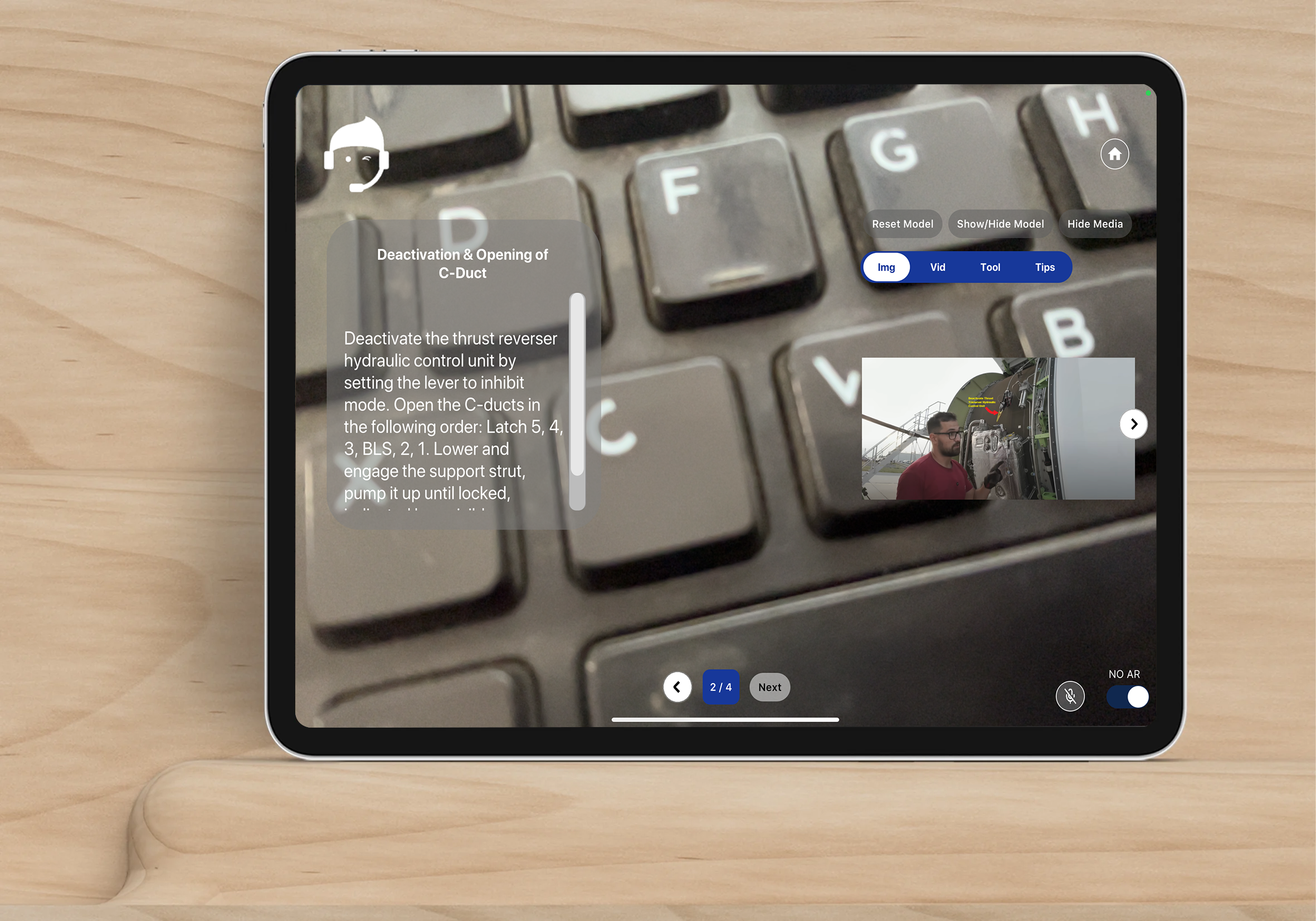
AR Mode Controls
While in AR Mode, users can:
* ✅ Reset 3D model
* ✅ Show/Hide model
* ✅ Show/Hide media
* ✅ Switch resource type (Img / Vid / Tool / Tips)
* ✅ Move to next or previous step
* ✅ Toggle AR mode ON/OFF
***
#### Voice Commands in Non-AR / AR Mode
To use voice commands:
✅ Press the microphone button.\
❗ Voice commands will NOT activate automatically.\
🔊 Ensure audio permissions are granted.
## When to Use Each Mode
| Mode | Best For |
| ------- | -------------------------------------------------------- |
| Non-AR | Indoor training, reviewing instructions, classroom usage |
| AR Mode | Field execution, hands-on tasks, equipment matching |
***