> For the complete documentation index, see [llms.txt](https://docs.argenie.ai/llms.txt). Markdown versions of documentation pages are available by appending `.md` to page URLs; this page is available as [Markdown](https://docs.argenie.ai/ar-genie-work-assist/work-assist-on-web-portal/asset-register-and-configure-equipment-units.md).
# Asset — Register and Configure Equipment Units
Step-by-step guide to adding, editing, and managing assets linked to an Asset Type.
## Overview
The **Asset** page in the **Work Assist** module allows users to add, edit, and view individual assets within a selected Asset Type.\
Each asset represents real-world equipment or a machine that can be linked to workflows, job records, and templates for standardization and tracking.\
Technicians use this section to manage asset information such as name, serial number, and location.
{% hint style="info" %}
This page focuses on managing individual assets and linking them to workflows, job history, and templates to maintain traceability.
{% endhint %}
***
## Steps to Add a New Asset
{% stepper %}
{% step %}
### Open Assets
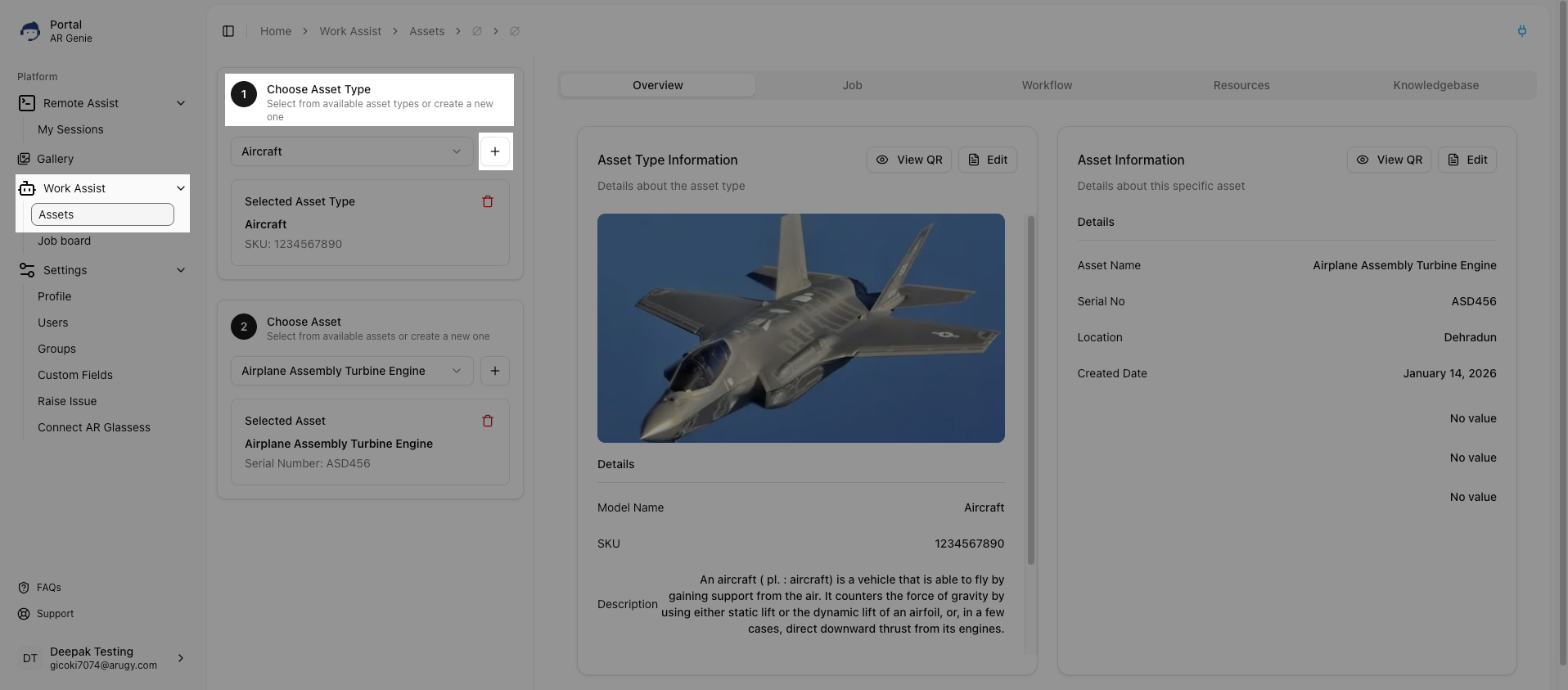
Open Work Assist → Assets from the side navigation panel.
{% endstep %}
{% step %}
### Choose Asset Type
Under Choose Asset Type, select an existing Asset Type or create a new one.
{% endstep %}
{% step %}
### Add Asset
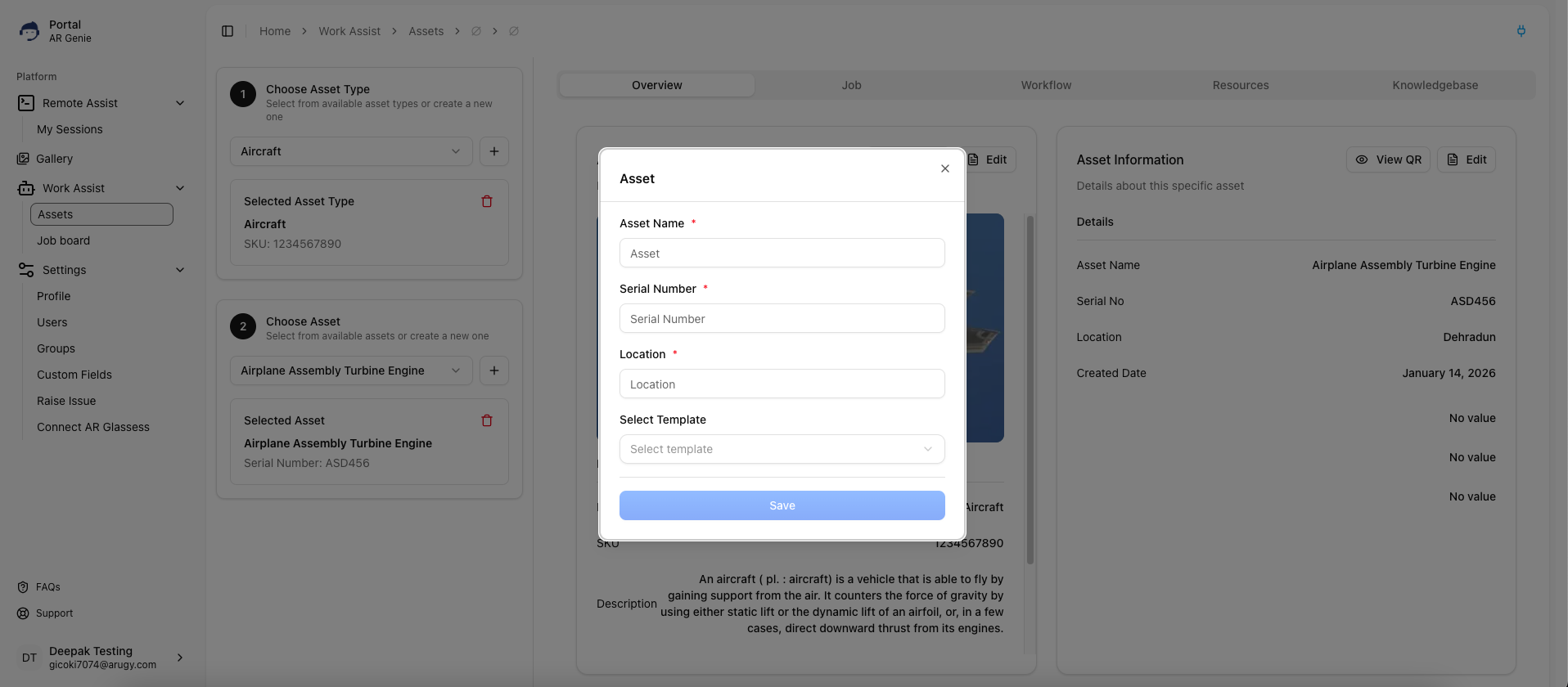
Click ➕ Add Asset to open the asset creation form.
{% endstep %}
{% step %}
### Fill Asset Details
Fill out the asset details:
* **Asset Name**\* — Enter a unique name for easy identification.
* **Serial Number**\* — Add the manufacturer or internal tracking number.
* **Location**\* — Specify the plant or site where the asset is located.
* **Select Template** — (Optional) Choose a predefined template to apply existing workflows or configurations.
{% endstep %}
{% step %}
### Save
Click Save to create the asset.
Once saved, the new asset appears in the “Choose Asset” dropdown list and its details are displayed in the Asset Information panel on the right.
{% endstep %}
{% endstepper %}
***
## Viewing Asset Information
After creating or selecting an asset, view its complete details in the **Asset Information** panel:
* **Asset Name** — Displays the registered asset name.
* **Serial Number** — Shows the unique identifier or manufacturing code.
* **Location** — Displays the asset’s physical or operational location.
* **Created Date** — Date when the asset was added to the system.
* **View QR** — Generates a scannable QR code for easy identification and linking in AR mode.
* **Edit** — Allows modification of existing asset information.
***
## Asset and Job Relationship
Each asset is linked to an **Asset Type**, which contains related workflows, templates, and resources.\
When a job is created using a workflow under that asset type, the system automatically associates the specific asset with the job’s history.\
This ensures complete traceability for maintenance and operational activities.
***
## Notes
{% hint style="success" %}
Tip: Use templates for commonly used equipment setups to save configuration time.
{% endhint %}
{% hint style="warning" %}
Note: An asset cannot be deleted if it is linked to any existing job or job history.\
To delete an asset, ensure it has no active or historical jobs associated. Only unlinked assets can be removed safely.
{% endhint %}
***
## Example Use Case
> Example:\
> A technician adds an asset named *“Hydraulic Press Machine — HP200”* under the *“Hydraulic Press Type”* category.\
> The asset is located in the *Mumbai Manufacturing Facility* and is linked to a “Routine Maintenance Template.”\
> The system then automatically associates standard workflows and inspection checklists for that machine type.
***
## Best Practices
* Always include clear and consistent asset names for faster search and traceability.
* Maintain up-to-date location data to help field teams locate assets easily.
* Regularly review linked workflows and templates for consistency across all assets.
* Use QR codes on equipment for quick identification and AR-guided servicing.