> For the complete documentation index, see [llms.txt](https://docs.argenie.ai/llms.txt). Markdown versions of documentation pages are available by appending `.md` to page URLs; this page is available as [Markdown](https://docs.argenie.ai/ar-genie-work-assist/work-assist-for-ipad/step-by-step-guide-for-anchor-editor.md).
# Step by Step Guide for Anchor Editor
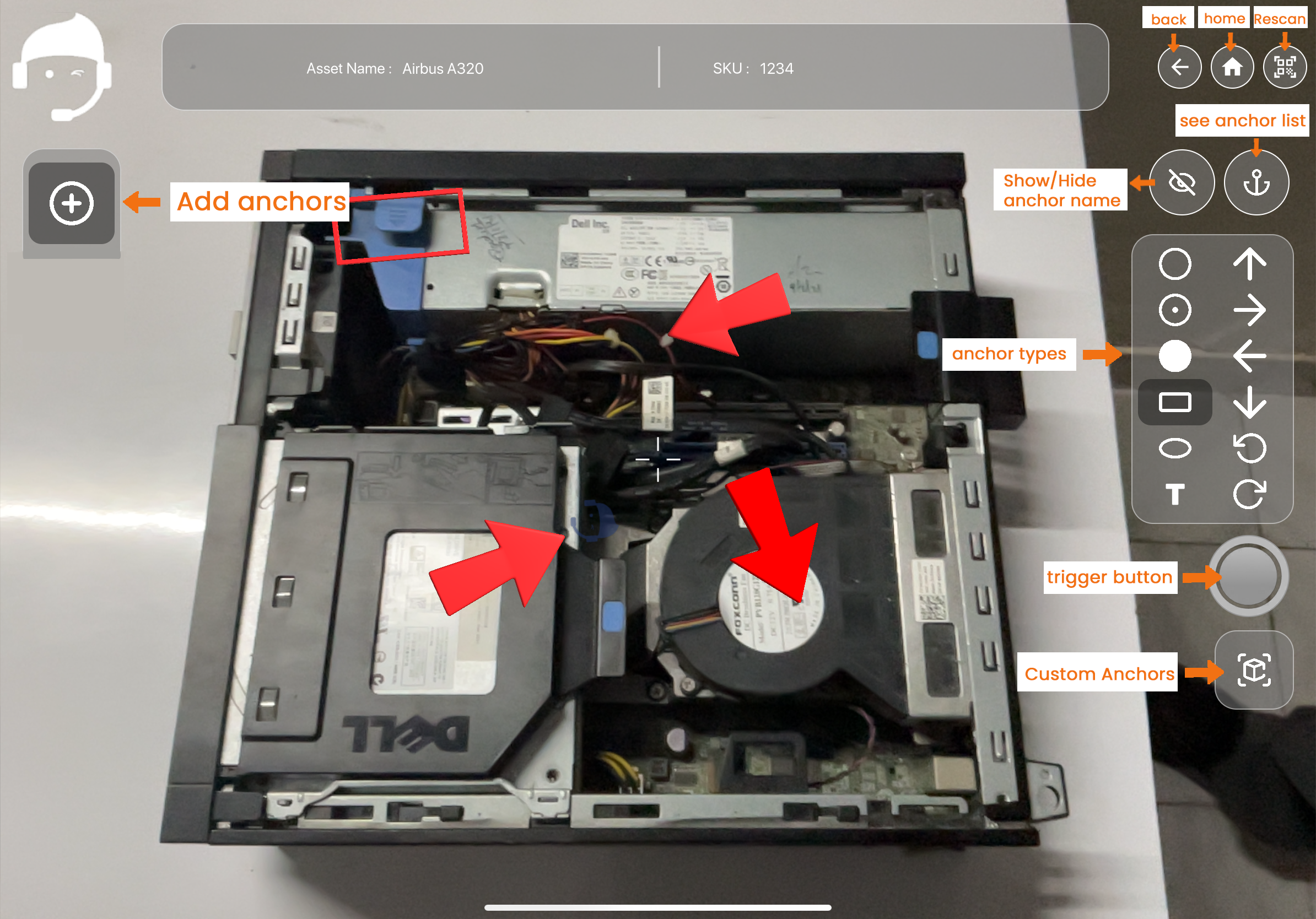
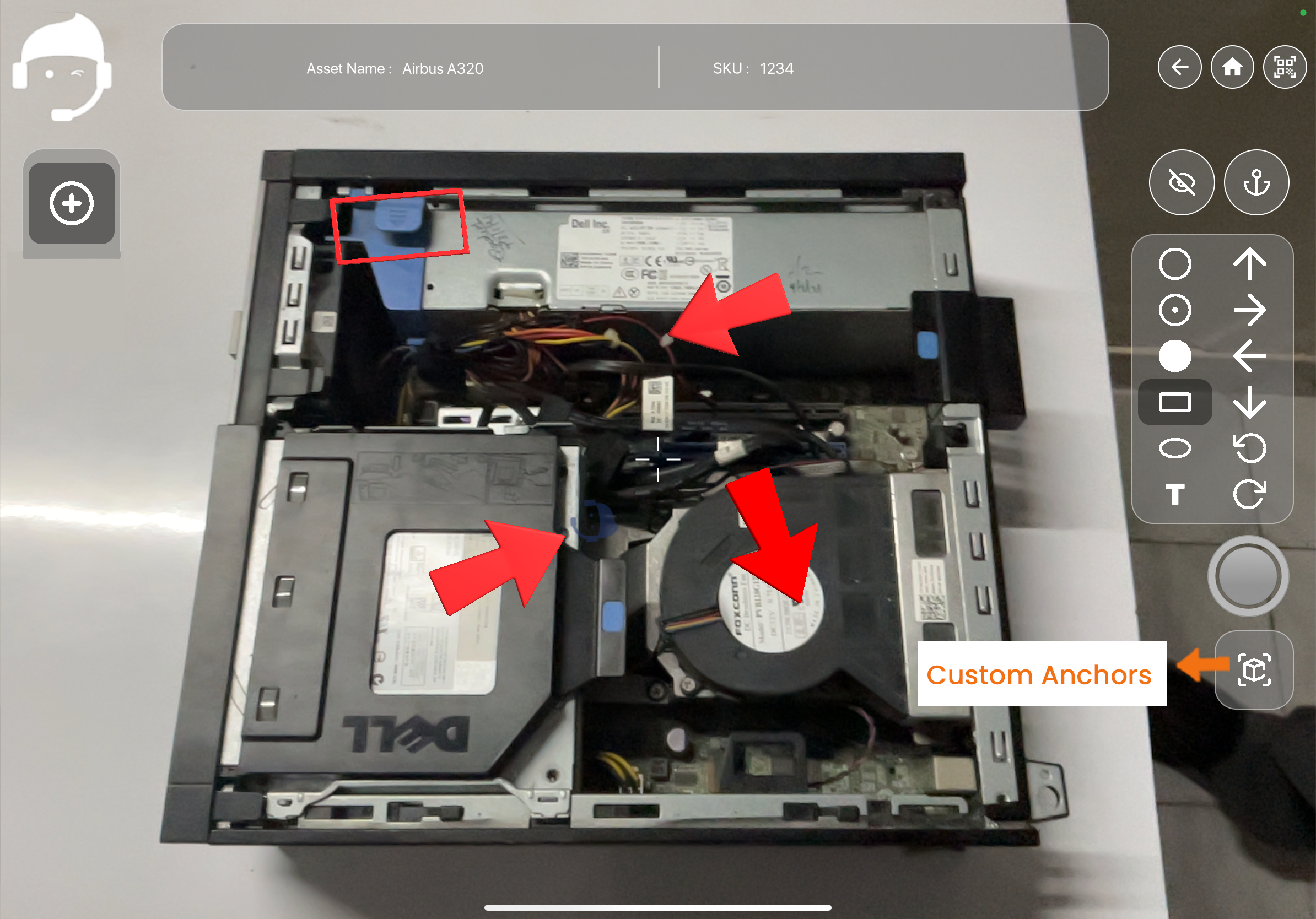
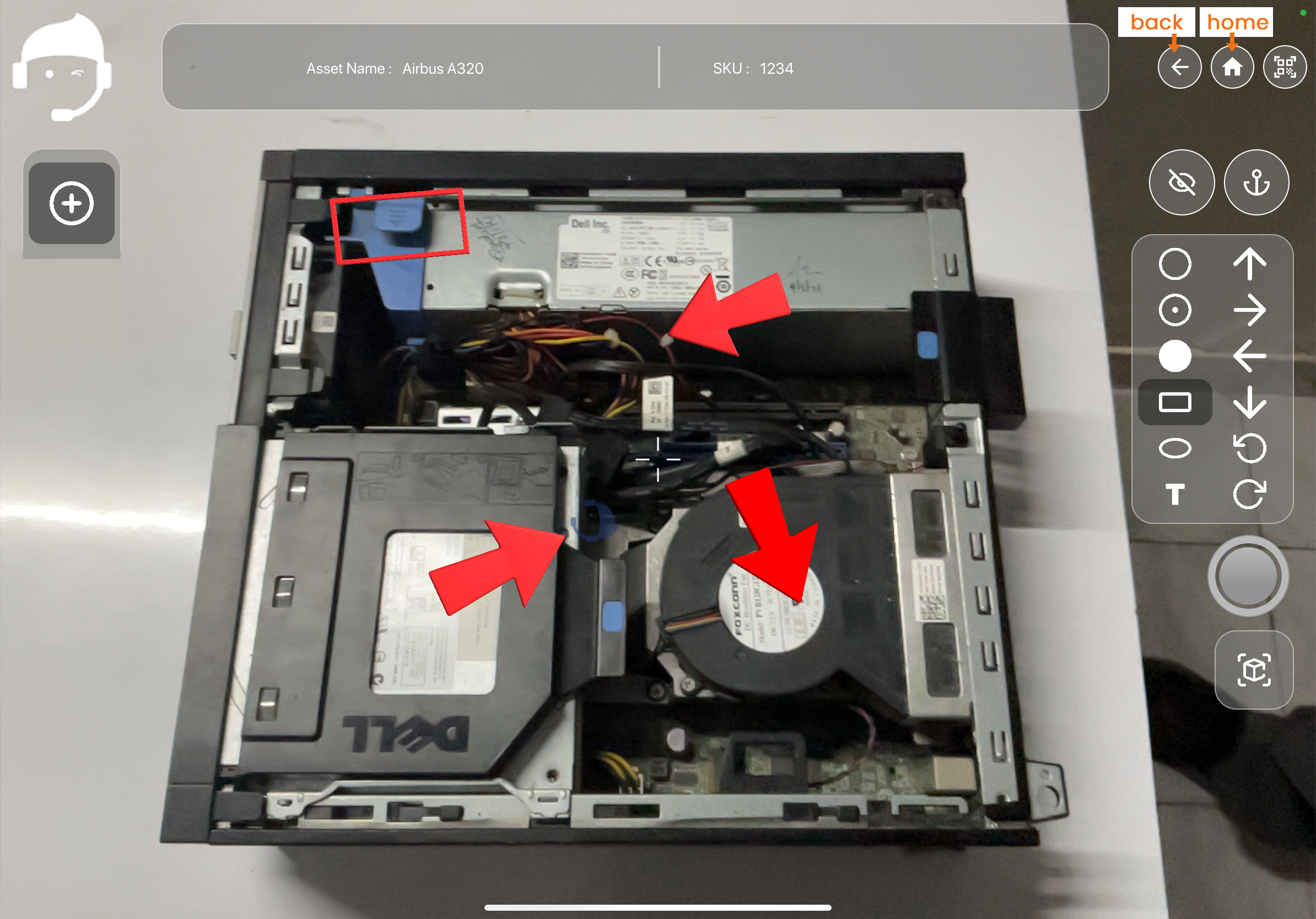
The **Anchor Editor** in the AR Genie Work Assist iPad App allows you to place digital AR anchors directly on top of real machinery. These anchors help guide workers with step-by-step instructions, pointing exactly to the correct position on the equipment.
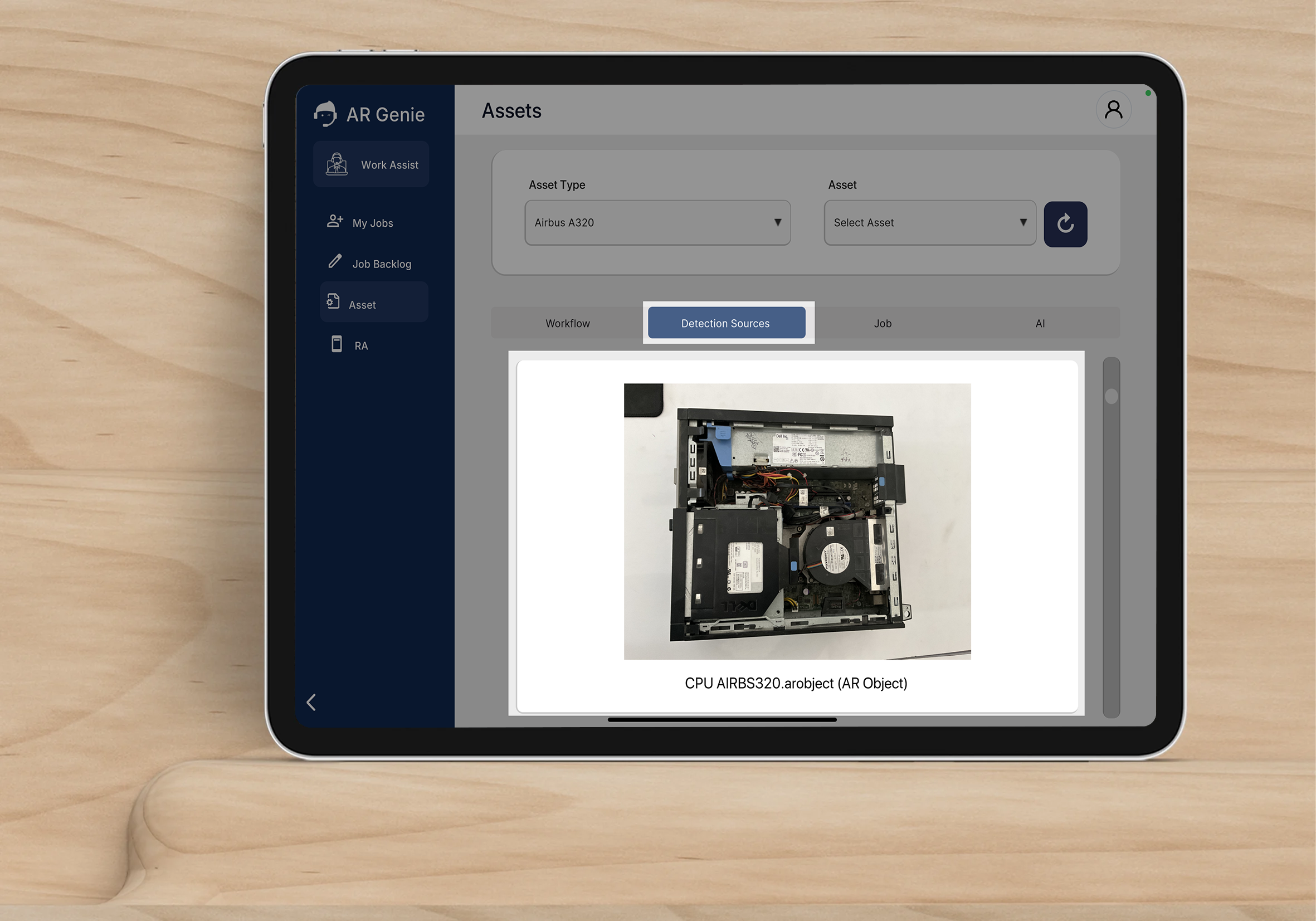
The system works by using **3D scan detection files** (such as `.arobject` files) that accurately match the real device. Once the device is detected, you can visually place anchors on it with precision.
How the Anchor Editor Works When you select a detection source, the app **automatically opens the Anchor Editor**, where you can:
* Detect the physical device
* Place, move, rotate, and scale anchors
* Assign or edit anchor names
* View all anchors via the anchor list panel
* Use preset or custom anchor shapes
This enables accurate AR instruction layers on real equipment.
Step-by-Step Guide to Using the Anchor Editor
{% stepper %}
{% step %}
### Select a Detection Source
* On the detection source list screen, tap on an `.arobject` or supported tracking file.
* As soon as you select a detection file, the app automatically opens the Anchor Editor.
* Point your iPad at the real equipment → the app will detect it automatically.
{% hint style="info" %}
Once detected, a small logo will appear in the center for image/QR sources. For `.arobject` files, the anchor origin appears where the origin was set in the detection file.
{% endhint %}
{% endstep %}
{% step %}
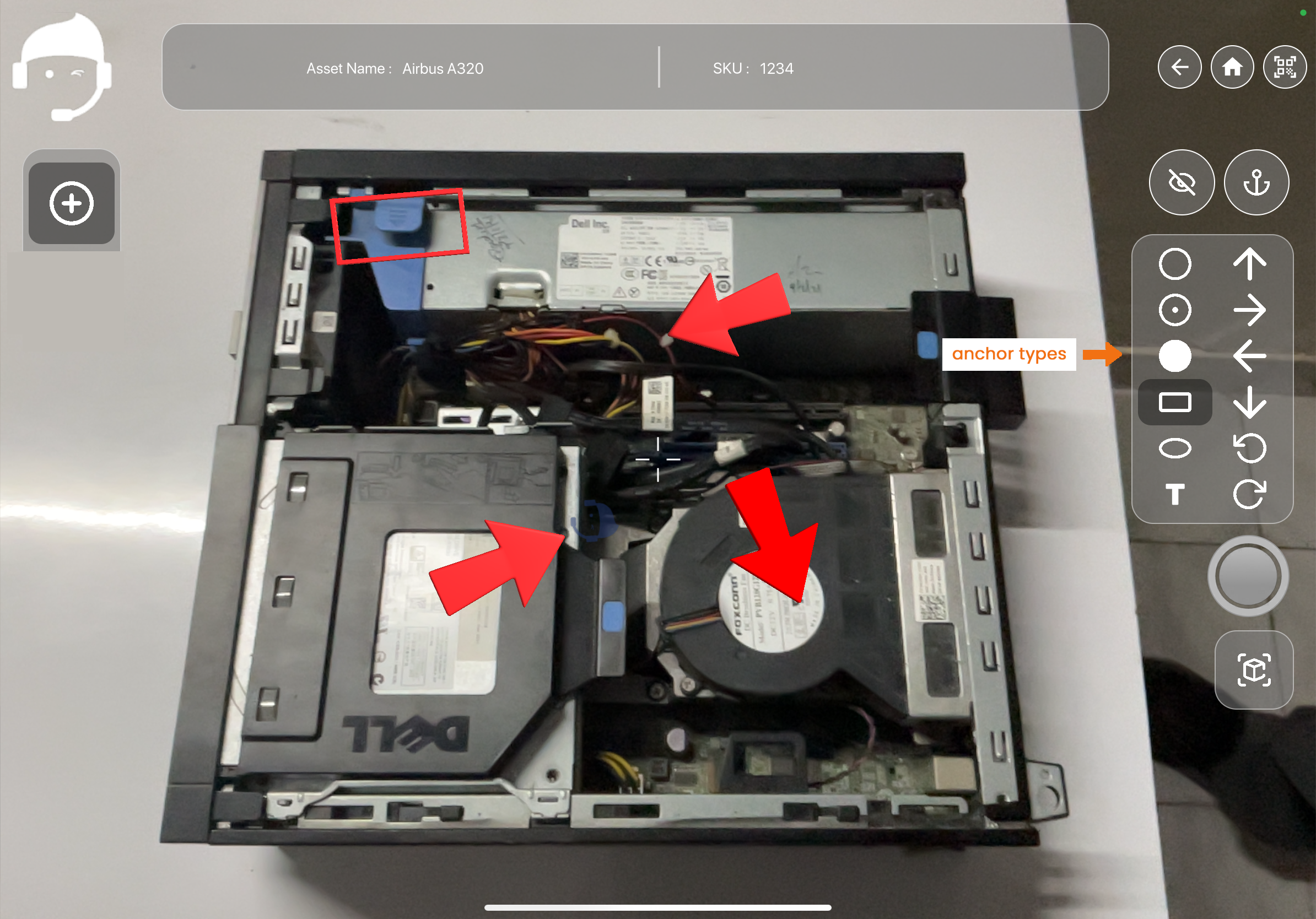
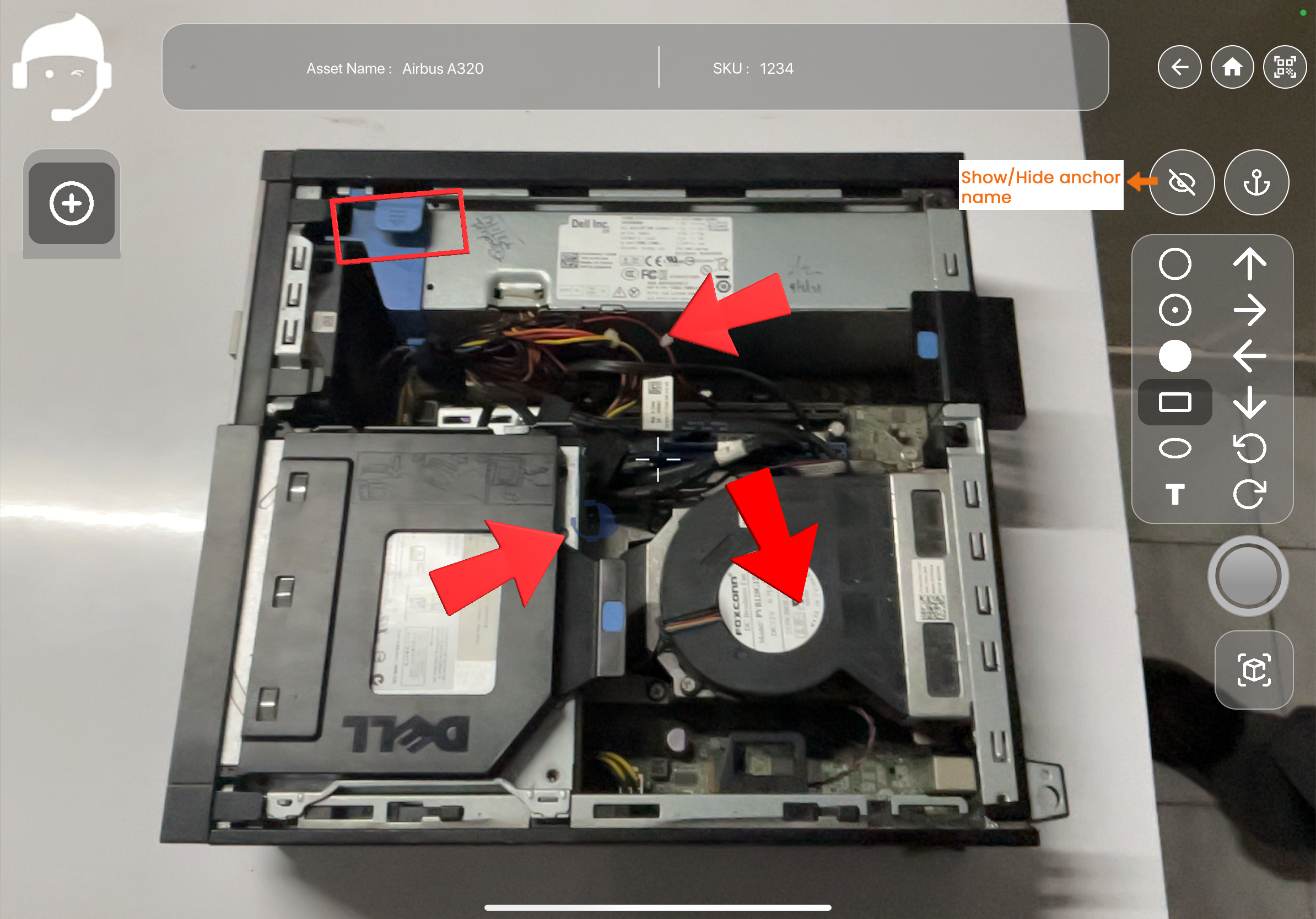
### Choose an Anchor Type
Available anchors include:
* Down arrow
* Up arrow
* Left/right arrow
* Circle
* Rectangle
* Curve pointer
* **Custom anchors** (your own shapes/icons from your library)
Tap any anchor type to select it.
{% endstep %}
{% step %}
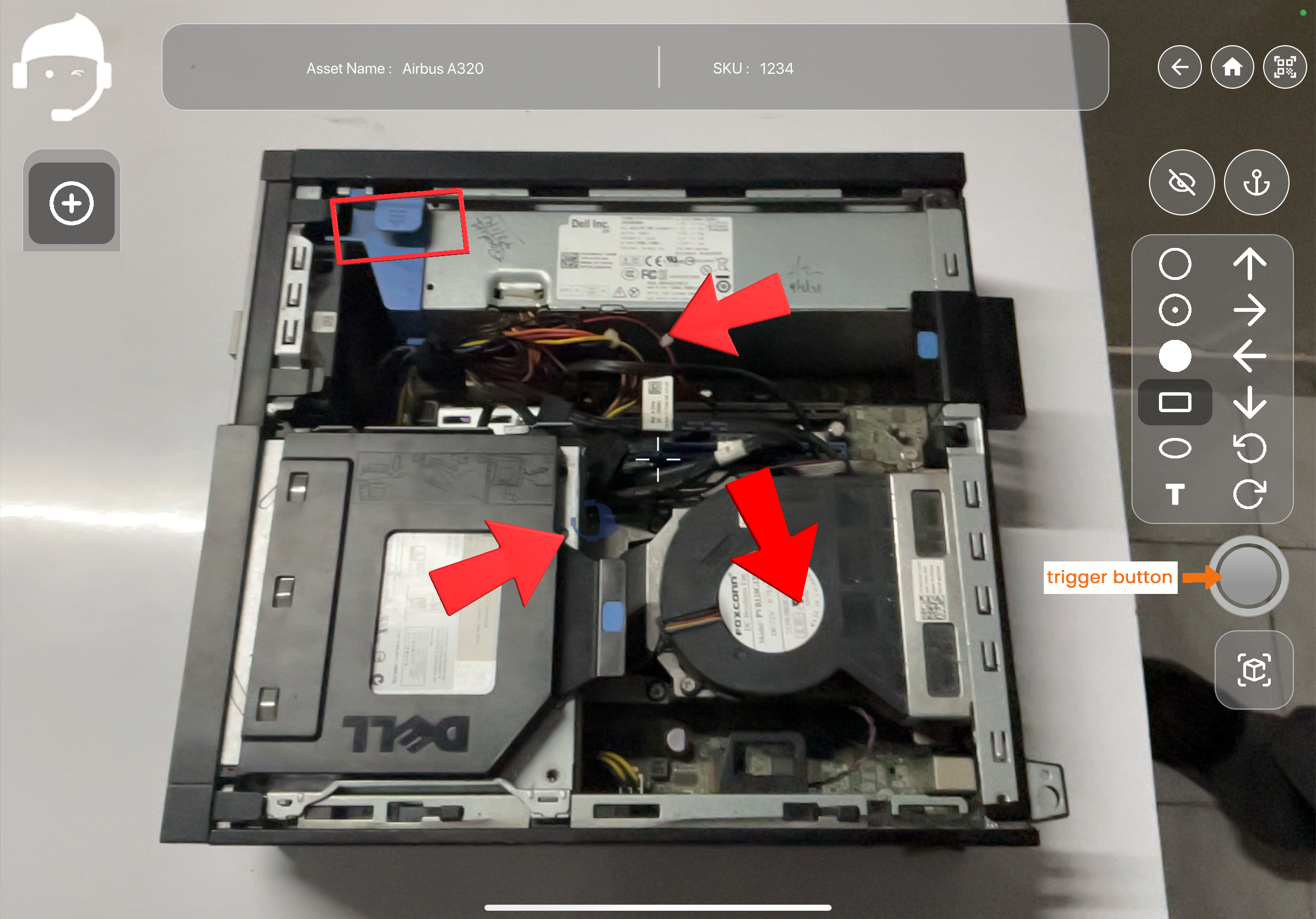
### Place the Anchor
* Move your iPad to the location where the anchor should appear.
* Tap the **Trigger button** to place the anchor.
* The anchor will appear exactly on the surface or area you pointed to.
{% hint style="warning" %}
Ensure the device remains detected while placing anchors.
{% endhint %}
{% endstep %}
{% step %}
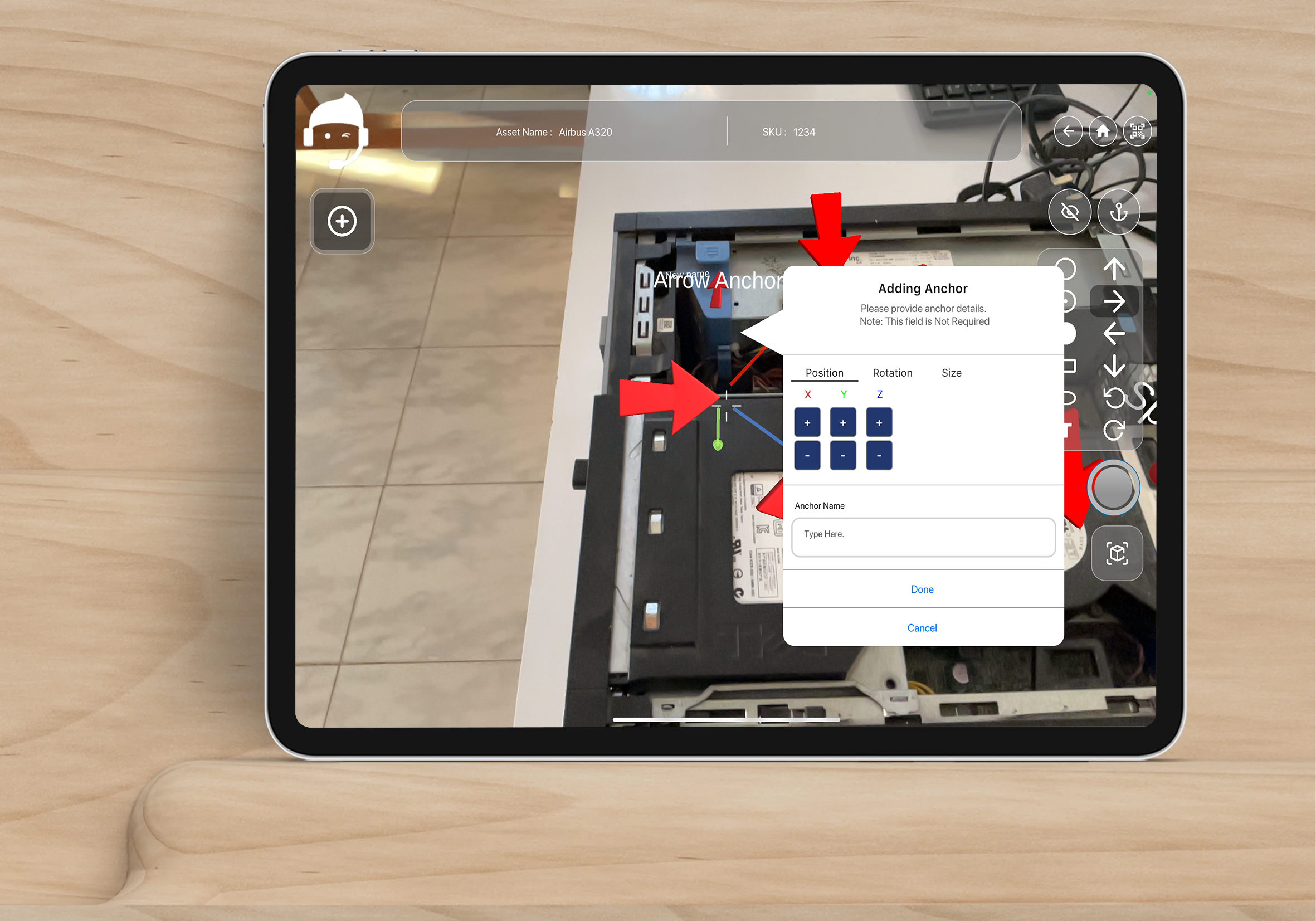
### Adjust the Anchor (Position, Rotation, Size)
All anchors can be modified:
* **Position** – use + or - buttons in x, y, z axis to move them
* **Rotation** – use + or - buttons in x, y, z axis or use the in-screen gizmo to rotate the anchor
* **Size** – use + or - buttons in x, y, z axis to resize the anchor. Press the Linked checkbox to resize in all directions.
These controls ensure the anchor aligns perfectly with the real component.
{% endstep %}
{% step %}
### Add or Edit Anchor Name
* Select the anchor from the active anchor panel.
* Add or update its name (examples: *Open Panel*, *Check Switch*).
* Toggle **show/hide names** as needed.
{% endstep %}
{% step %}
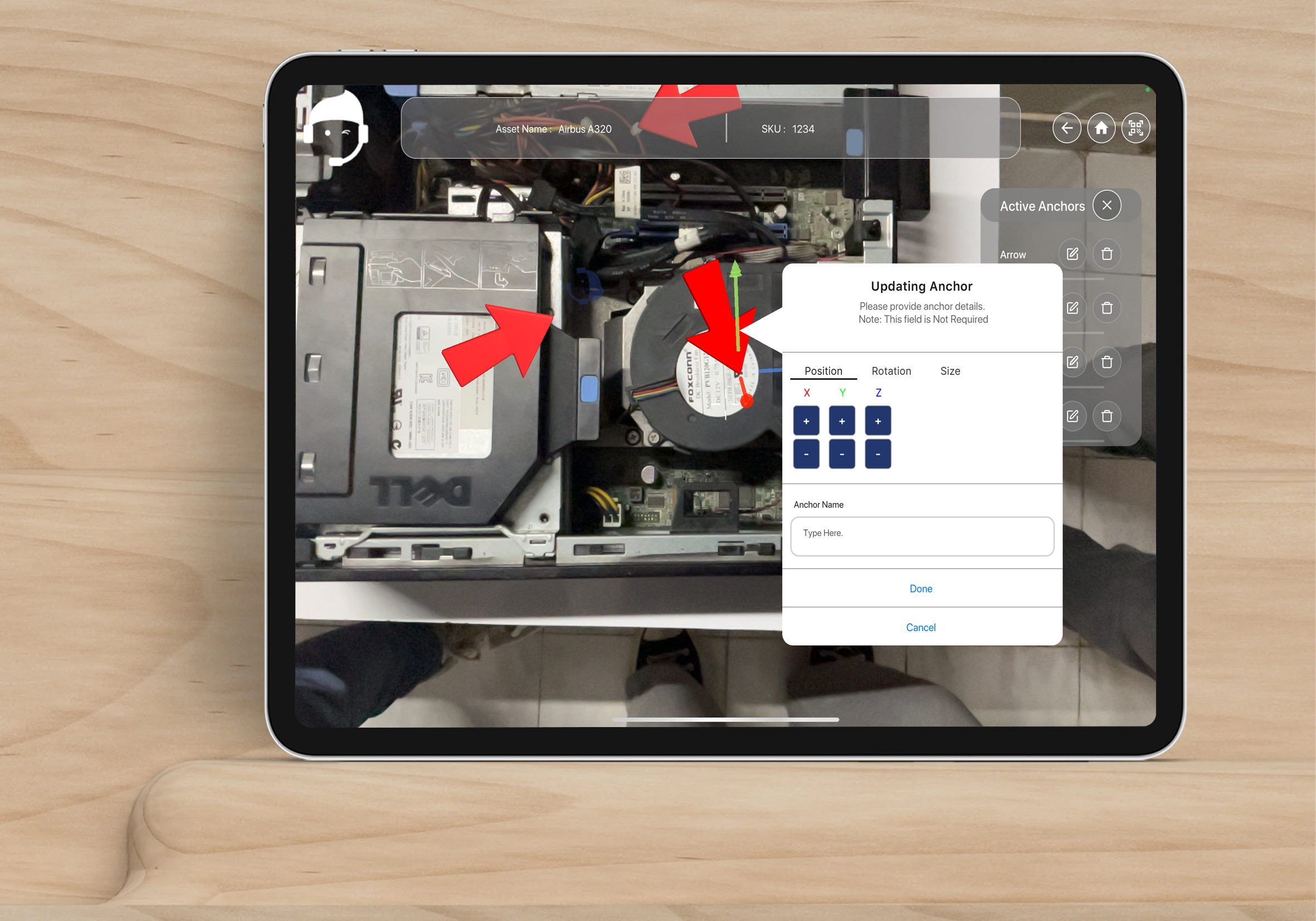
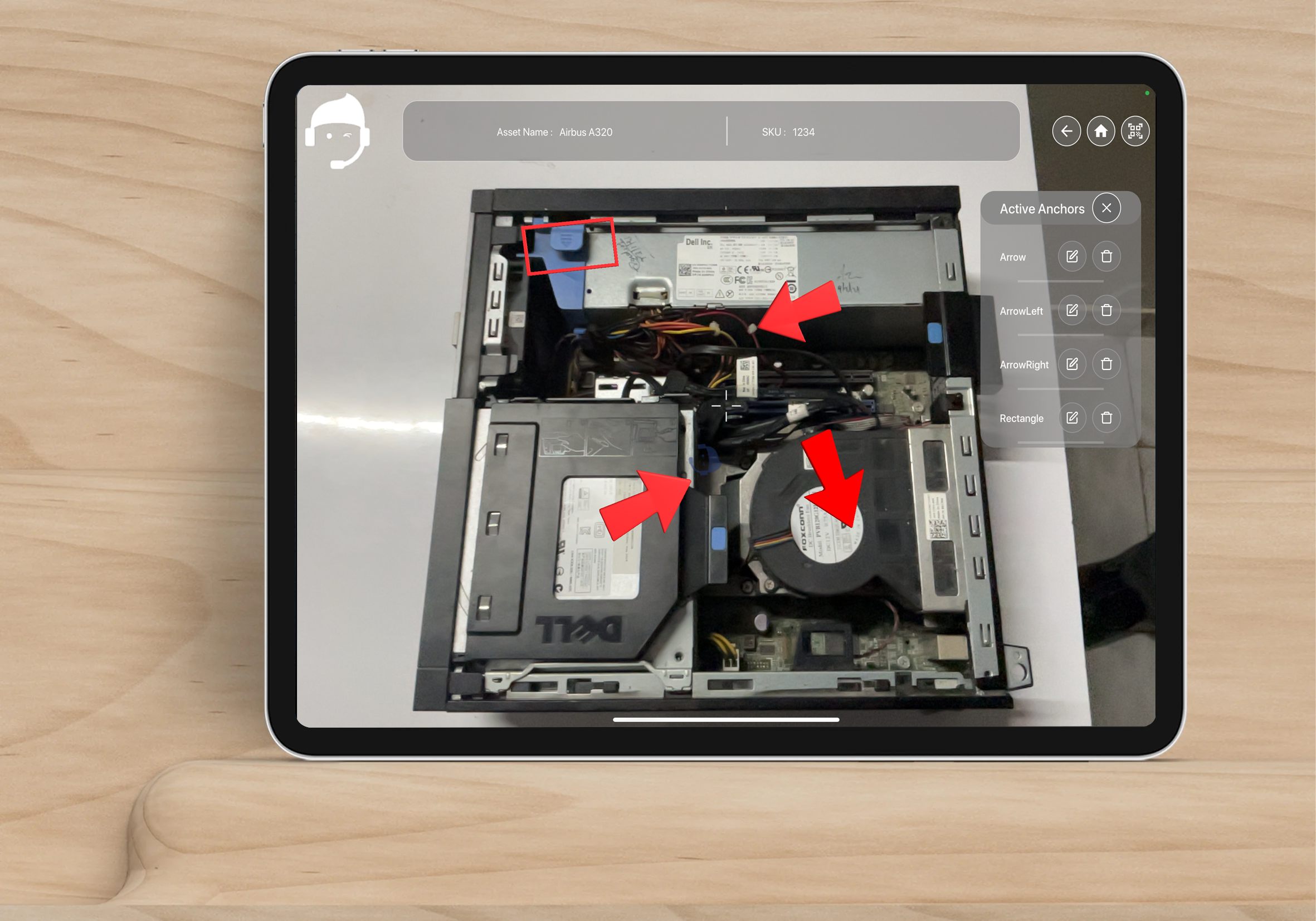
### Manage All Anchors (Anchor List Panel)
Tap the **Anchors** button to open the anchor list.
Inside the panel, you can:
* Select anchors
* Edit or rename anchors
* Update position or rotation
* Remove or modify anchors
* Close the list via the **X button**
{% endstep %}
{% step %}
### Use Custom Anchors
Custom anchors allow advanced users to:
* Use organization-specific icons
* Highlight unique components
* Add visual cues not available in the default library
Access them through the **Custom Anchors** library.
{% endstep %}
{% step %}
### Save and Exit
After placing and adjusting all anchors, they are saved automatically.
The anchors are stored and linked to that specific detection source. During AR guidance, the anchors will appear exactly on the real machine.
{% endstep %}
{% endstepper %}
#### **Watch AR Anchor Editor Tutorial video:**
{% embed url="" %}
Summary
By selecting a detection source → automatically entering the Anchor Editor → placing & adjusting anchors → saving them, you create precise AR workflows aligned to the actual machinery.